Using Runtime Parameters for Dynamic Widget Labels
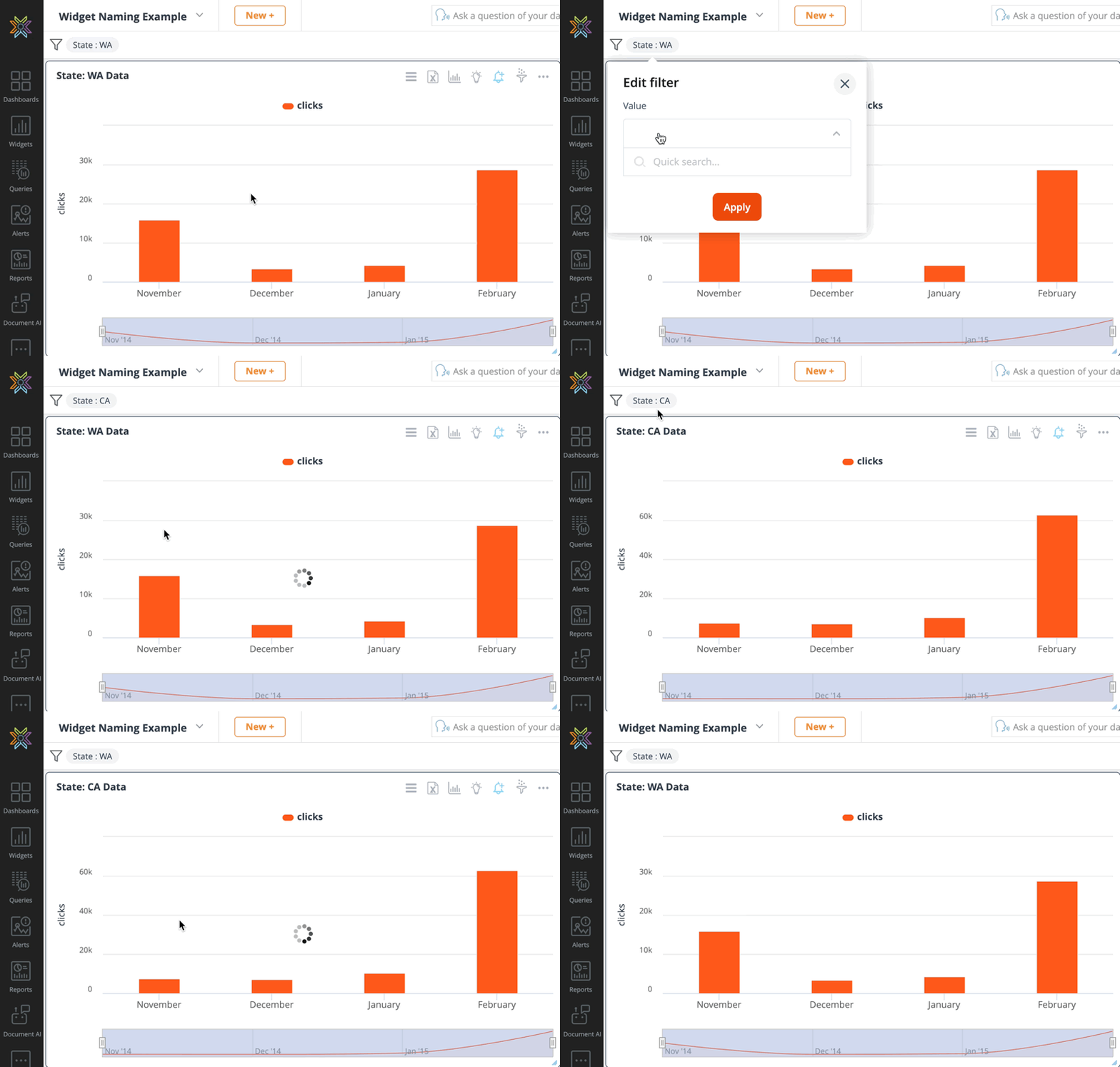
Runtime Parameters can be used as dynamic filters that pass values back to the query level to filter the data. Let's walk through an example where we use runtime parameters to set the name of a widget dynamically.
Step 1: Make sure your query is direct and that it has a runtime parameter in it. My example query contains the following Cloud9QL:
SELECT *
WHERE state = $c9_State$[State]$;
Step 2: Create a dashboard level filter for the runtime parameter.
Step 3: On the widget, click on filters and then Cloud9QL transformations. Use the syntax below to create a new column with any column name, where the values are the runtime parameter.
SELECT *, $c9_State$[State]$ as Title;
Step 4: Rename your widget under widget settings, Visualization title using the following syntax: {{fieldname:n}}, where fieldname is the column and n is the row number of the value you want to reference.
State: {{Title:1}} Data
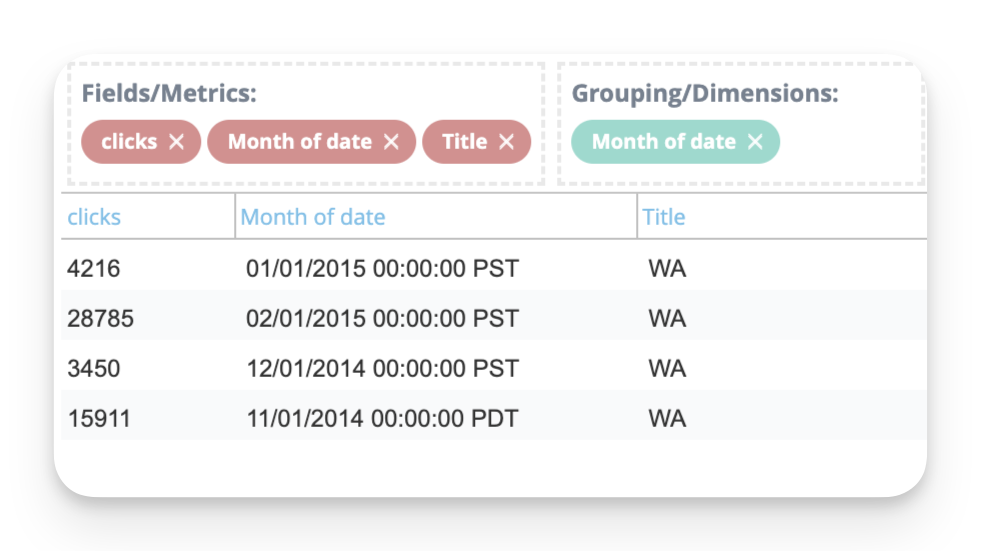
Step 5: Make sure that the cell you are referencing exists in the final transformed version of the table. For example, here, I am only using the columns clicks and Month of date to create my visualization, but I will keep the column Title in the final transformation so that the first cell of the column Title can be referenced.
Adding Dynamic Threshold Lines
In cases where you need thresholds that adjust with the data, you can reference calculations directly within the widget:
-
Example: Set a threshold line to the median of a column by calculating it in Cloud9QL.
- Use
SELECT MEDIAN(column_name) AS median_value to add a median column to your data table. Now, the threshold can automatically adjust as the data updates.
These dynamic capabilities make it easy to adapt widgets to display relevant information based on real-time data, ensuring your dashboards are always in sync with what matters most.