The Report Builder enables you to create a fully customized and branded PDF report using existing widgets. You can add or remove widgets, apply report-level filters, and edit widgets directly within the Report Builder. Any changes made within the builder will not impact the original widgets.
Accessing the Report Builder
You can start your PDF report either from scratch or from an existing dashboard. Follow the steps below based on your preferred option.
Option 1: Start from Scratch
- Navigate to Reports in the left-side menu.
Click New Report + in the top-right corner.
Option 2: Start from an Existing Dashboard
- Open the desired dashboard.
- Click the three-dot menu in the top-right corner of the dashboard.
- Select Schedule/Send a Report from the dropdown menu.
Final Steps (for Both Options)
- In the New Report tab, locate the Report Data section.
- Select Report Builder and then click Create Now.
How to Set up Your PDF
Widgets
Adding Widgets: Search and select widgets from the dropdown menu to add them to your PDF.
Adjusting Widgets: To adjust widget positioning, simply drag and drop the widget to your desired location on the page. Resize the widget by dragging the edges or the bottom-right corner.
Page Breaks: A red dashed line represents a page break. To prevent a widget from being split across pages, adjust its size to fit within the boundaries of the lines.
Edit Widgets: Edit individual widgets directly in the Report Builder, these changes will not persist outside of the Report builder. Remove widgets from your PDF by selecting the delete button.
- Edits stay in the report. Changes you save in the Report Builder, including the visualization type and widget name, apply only to this report. The widget on your dashboards keeps its own settings.
- Later dashboard edits no longer appear in the report. Once you edit a widget in the Report Builder, changes made to that widget outside of the report are not reflected in the report's version.
- A notice appears in the widget settings. When you open a widget's settings in the Report Builder, a message reminds you that changes saved there apply only to this report.
- Reset to the global version. Widgets edited in the Report Builder show a reset icon in the widget header. Click it and confirm to discard the report-specific changes and return the widget to its globally saved version, so it reflects the widget's current settings again.
- Removing a widget discards its report edits. If you delete a widget from the report and add it back later, it starts from its globally saved version rather than your previous report edits.
Adding Report-level Filters
Filters in the Report Builder allow you to apply specific conditions that affect all the data across every widget in the PDF. Here’s how to add and manage filters.
Add a New Filter
Click the “+ Add New” button.
A menu will open, allowing you to configure filters just as you would on a dashboard. For more details on how to set up filters, refer to the filters documentation.
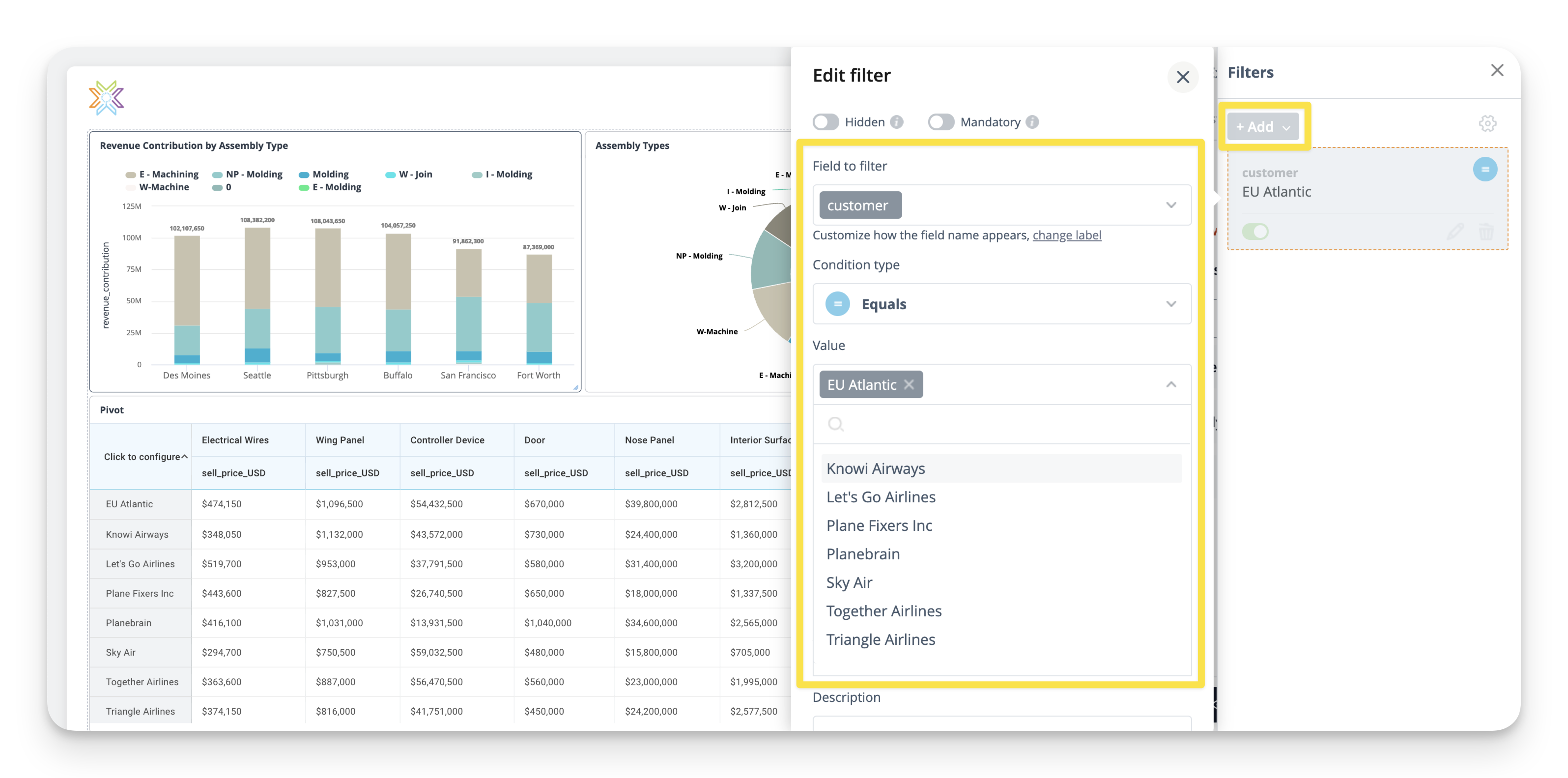 Editing and Deleting Filters
Once you've added filters, they will appear under the Filters section. Selecting +Add New will allow you to edit existing filters to refine their conditions, delete filters to remove them from your PDF, or add new filters. Any changes to the filters will be immediately reflected in the widgets within your PDF, but will not effect the widgets outside of the Report builder.
Customize Tab
Access the Customize tab for advanced personalization.
Export Name: Set a custom filename for the PDF attachment, overriding the default name (the report name). This field supports runtime parameter tokens, e.g. $c9_myparam$, which get replaced with the matching report/dashboard runtime parameter value, as well as date tokens, e.g. {$c9_now:yyyy-MM-dd}. Leave blank to use the default name.
Appearance
• Company Logo: Add a company logo to the top-left corner. This field can also be left blank.
• Background: Use the color picker or input a hex code to set a custom background color.
• Page Orientation: Orient the page as landscape, portrait, or custom.
• Margin Size and Layout: Adjust margins and select a layout style (fit to width, fit to one page, or single column).
• Page break after expanded grids: When checked, any widget directly below an expanded datagrid will be pushed to the next page, keeping the layout clean when grids expand across page boundaries.
Widget Appearance
• Change widget title font, font size, title color, and border color.
Note that here you have the option of removing widget titles and widget borders, for a more streamlined appearance.
Headers and Footers
• Add page numbers, the current date, and time.
• Customize title font, font size, and font color for headers and footers.
Preview & Save
1. Use the Preview button at the bottom to see how the PDF will look before exporting.
2. Click Save to store all settings for future use.